
Your CFO just asked why paid media spent 47% of the monthly budget in the first nine days. You pull up the Google Ads interface, squint at the numbers, and realize you have no defensible answer. The platform's native pacing controls are opaque, the 2x daily overspend rule is working exactly as designed, and nobody on your team caught the drift until Finance flagged it.
This is the problem a daily pacing script solves. Not by replacing Google's bidding logic, but by giving you a single source of truth you can share with Finance before they come asking.
The Pacing Problem Finance Actually Cares About
Google Ads does not treat your daily budget as a ceiling. According to Google's own documentation, the platform can spend up to twice your daily budget on any given day, then self-correct across the month to stay within 30.4 times your daily budget. That monthly cap is the real fence the algorithm protects.
For a $100/day campaign, this means Google might charge $180 on Monday and $40 on Tuesday. Both days are "working as intended." But when you're managing a portfolio of campaigns across multiple accounts, these fluctuations compound into variance that looks like chaos to anyone outside the paid media team.
The pacing update made this worse for advertisers using ad scheduling. As The Optimizer documented, Google now paces toward the full monthly limit regardless of how many days your schedule allows. A weekday-only campaign with a $100 daily budget used to pace toward roughly $2,200/month. Now it paces toward $3,040, compressed into fewer active days.
The math that matters: if your daily budget is $100 and you run ads 20 days per month, your effective daily spend becomes ($100 × 30.4) ÷ 20 = $152/day. That's 52% more per active day than what you were spending before the change.
What a Pacing Script Actually Does
A pacing script pulls spend data from your Google Ads account, compares it against your target budget, calculates where you should be versus where you are, and surfaces the delta in a format you can act on. The output typically lands in a Google Sheet that updates daily, giving you a running view of cumulative spend, expected spend, and the gap between them.
The core logic is straightforward. As Dan Brown's implementation demonstrates, the script needs to:
- Track daily spend
- Calculate cumulative spend against the month
- Compare actual versus expected based on days elapsed
- Flag accounts that are over-pacing by more than a threshold you define
The value is not in the code itself. It's in having a single artifact you can point to when someone asks "are we on track?" The script transforms a question that requires 15 minutes of clicking through the UI into a glance at a spreadsheet.
Building the Script: Core Components
Google Ads Scripts use JavaScript and run directly inside the Google Ads interface. You don't need external hosting or API credentials beyond what the platform provides. Google's documentation confirms that entry-level JavaScript familiarity is sufficient to get started.
The script needs four components:
- A budget reference (typically stored in a Google Sheet)
- A spend query that pulls actual costs
- A pacing calculation that compares actual to expected
- An output mechanism that writes results somewhere visible
For the budget reference, create a Google Sheet with columns for Account ID, Campaign Name, and Monthly Budget. This becomes your source of truth for what you intended to spend, separate from what Google's UI shows.
The spend query uses Google Ads Query Language to pull cost data. The script iterates through campaigns, pulls stats for the current month, and sums the costs. PPC Hero's implementation shows a pattern where the script compares cumulative spend against the monthly target and calculates how close you are to pacing.
The pacing calculation divides the month into elapsed days and remaining days, then compares your actual spend rate against the rate you'd need to hit your target. If you're 30% through the month but have spent 45% of budget, you're over-pacing by 15 percentage points.
The Script Structure
The basic structure follows this pattern:
function main() {
 var SPREADSHEET_URL = 'YOUR_SPREADSHEET_URL_HERE';
 var spreadsheet = SpreadsheetApp.openByUrl(SPREADSHEET_URL);
 var dataSheet = spreadsheet.getSheetByName('Sheet1');
 var budgetSheet = spreadsheet.getSheetByName('Budgets');

 // Clear previous data, keep headers
 dataSheet.getRange(2, 1, dataSheet.getLastRow() - 1,
 dataSheet.getLastColumn()).clearContent();

 // Get budgets from the Budgets sheet
 var budgetData = budgetSheet.getDataRange().getValues();
 var budgetMap = {};
 for (var i = 1; i < budgetData.length; i++) {
 var accountId = budgetData[i][1];
 budgetMap[accountId] = budgetData[i][2];
 }

 // Pull campaign spend and compare to budget
 // ... calculation logic here
}
This pattern, adapted from PPC Hero's budget management script, separates your budget targets from the script logic. When budgets change, you update the sheet, not the code.
Adding Alerts That Actually Get Read
A pacing dashboard nobody checks is worse than no dashboard at all. The script should send alerts when accounts drift beyond acceptable thresholds.
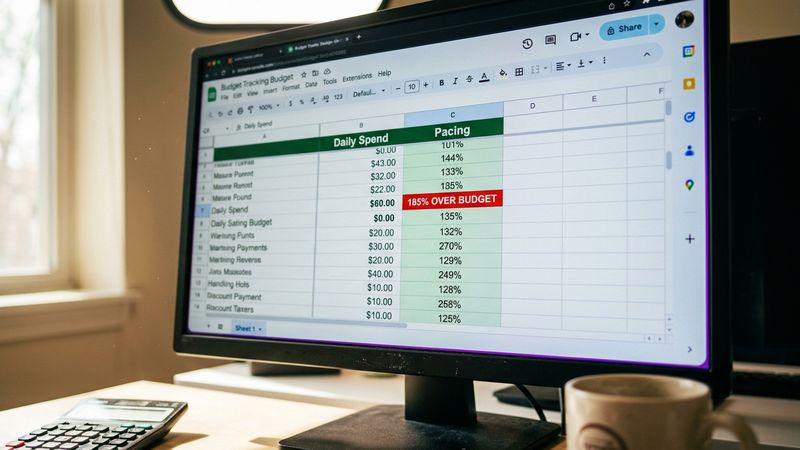
The alert logic compares pacing difference against a threshold you define. If cumulative spend exceeds expected spend by more than 10%, the script sends an email. Shopstory's analysis of budget scripts notes that alert-only scripts are most useful when combined with other automations or manual oversight. If alerts are ignored, overspending still happens.
Set the threshold based on your tolerance for variance. A 10% threshold on a $50,000/month account means you're flagging $5,000 swings. For some organizations that's noise; for others it's a board-level conversation.
What the Script Cannot Do
Scripts read data and make changes, but they cannot think. As Groas documented, a script can tell you that your cost per acquisition spiked 40% overnight. It cannot tell you whether that spike is because a competitor launched a promotion, your landing page broke, or your audience shifted.
Scripts also cannot override Google's bidding logic in real time. If you're running Smart Bidding, the algorithm will continue to make auction-time decisions regardless of what your pacing script reports. The script gives you visibility; it does not give you control.
The practical implication: use pacing scripts for monitoring and alerting, not for automated budget changes. Lunio's script analysis warns that scripts which pause campaigns when budgets are exceeded often fail to restart them automatically. Campaigns remain inactive, traffic is lost, and the "fix" creates a bigger problem than the original variance.
Making It Board-Ready
The script output needs to translate into language Finance understands. That means showing three numbers: what you planned to spend, what you actually spent, and the variance as both a dollar amount and a percentage.
Structure your output sheet with columns for:
- Account Name
- Monthly Budget
- Expected Spend (So Far)
- Actual Spend
- Variance ($)
- Variance (%)
- Pacing Status
The status column should show "On Track," "Over-Pacing," or "Under-Pacing" based on thresholds you define.
Color-code the variance column: green for within tolerance, yellow for approaching threshold, red for over threshold. This gives anyone scanning the sheet an instant read on which accounts need attention.
Run the script daily. Schedule it for early morning so the data is fresh when your team starts work. The goal is to catch drift before it compounds, not to explain it after the fact.
The Two-Week Pilot
Before rolling this across your entire portfolio, run a two-week pilot on three to five accounts. Verify that the spend numbers match what you see in the Google Ads UI. Check that alerts fire when they should. Confirm that the pacing calculations account for partial months correctly.
Document the assumptions:
- How you're handling campaigns that started mid-month
- Whether you're including all campaign types or excluding certain ones
- What threshold triggers an alert
These assumptions become the audit trail when someone questions the numbers.
After two weeks, you'll know whether the script is surfacing signal or noise. Adjust thresholds accordingly, then expand to the full account set.
The CFO will still ask questions. But now you'll have an answer that comes with a spreadsheet, a methodology, and a timestamp showing when you last checked.


